
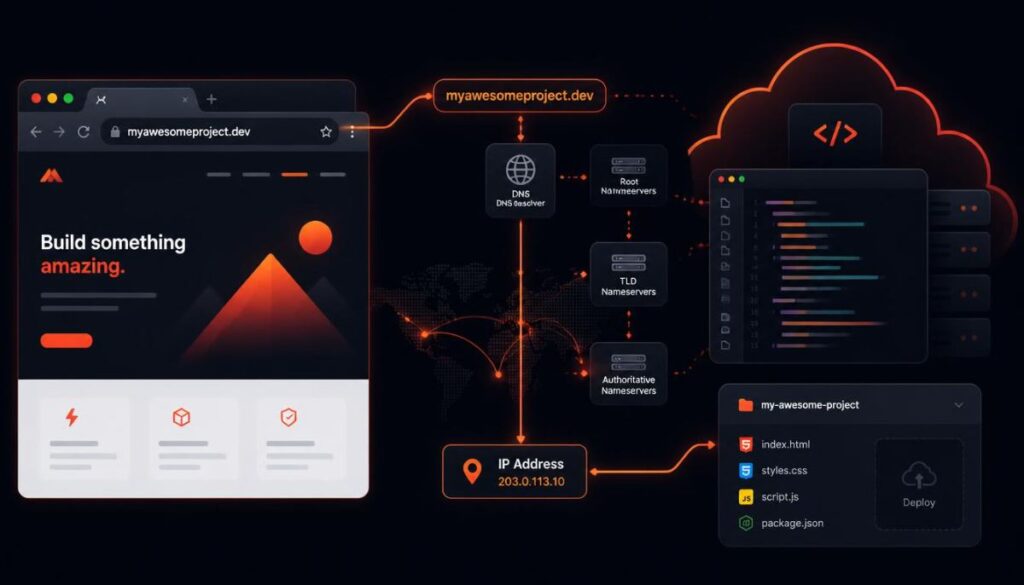
Replit AI makes it easy to build and publish a website or app, but the address it gives you starts as a project-based Replit URL. Learning how to connect custom domain to Replit AI lets you replace that URL with a domain you already own. This guide covers what you need first, how to add the domain, how DNS and verification work, and how to fix common problems.
What Is a Custom Domain?
A domain is the web address people type to reach your site, such as example.com. A custom domain simply means using a domain name you personally own and control, instead of the address a platform provides for you by default.
When you deploy a project with Replit, it typically gets a free address in a format similar to yourproject.replit.app. Connecting a custom domain lets visitors reach the same project through your own address instead, such as:
yourproject.replit.app → yourdomain.com
People usually want a custom domain because it looks more professional, is easier to remember, and helps build trust with visitors or customers.
What You Need Before Connecting a Domain
- A deployed Replit project. Custom domain settings generally become available only after your project has a successful deployment.
- Access to the Replit account that owns or manages the project, so you can open its deployment and domain settings.
- A domain you control, either purchased directly through Replit or through an external registrar.
- Access to your domain’s DNS settings, whether through your registrar directly or through a connected DNS provider.
- The ability to add or edit DNS records, since this is how your domain gets pointed to your Replit project.
Each item matters because a custom domain connects two separate systems: Replit, which hosts your project, and your domain registrar or DNS provider, which controls where your domain name points.
How to Connect Custom Domain to Replit AI

Step 1: Open Your AI Project
Open the project you built with Replit AI. If you have not already published or deployed it, do that first, since custom domain settings usually only appear once a project has an active deployment.
Step 2: Open the Domain or Deployment Settings
Look for the domain or deployment settings available for your project. In Replit’s current interface, this is generally found under a publishing or deployment area, in a section related to domains. The exact location and labels can change over time, so use the current menu structure shown in your account.
Step 3: Add Your Custom Domain
Select the option to connect a domain you already own, then enter it. You can typically enter either the root domain (example.com) or a subdomain such as www.example.com. Some setups may ask you to add both separately, since each one can point to a different destination. Follow the current guidance shown in your Replit project rather than assuming both are handled automatically.
Step 4: Get the DNS Instructions From Replit
After entering your domain, Replit generates DNS information you need to add at your domain provider. This commonly includes an A record and a TXT record used for verification and certificate renewal.
Always use the exact DNS values shown in your own Replit project. Do not copy sample values from another website, tutorial, or older guide, since these values are generated specifically for your domain and project.
How DNS Works With Replit
DNS is like an address book for the internet. When someone types your domain into a browser, DNS records tell that browser which server should answer the request.
The basic flow looks like this:
Domain → DNS records → Replit deployment → Your website
Your domain registrar or DNS provider stores and manages these records. Replit hosts the actual application. Connecting a custom domain means updating your DNS records so they point to Replit instead of somewhere else.
How to Add DNS Records
Replit’s current setup for externally registered domains commonly relies on two record types, though your exact instructions should always come from your own project.
A Record
An A record points a domain directly to a server’s numeric address. For a root domain such as example.com, Replit typically asks you to add an A record using the value shown in your project.
CNAME Record
A CNAME record points one domain name to another domain name, and is commonly used for subdomains such as www. Whether a CNAME is used for your setup depends on your current Replit configuration, so follow what your project actually shows rather than assuming it is required.
TXT Record
A TXT record often verifies that you actually own the domain and, for Replit, can also support certificate issuance and renewal. If Replit provides a TXT record, keep it in place even after your domain is verified.
Replit does not always require the same record types for every domain. Always follow the DNS records provided by your current Replit domain setup instead of a fixed list.
DNS Setup Example
The table below is an example only, meant to show the general shape of a DNS setup. Never use these sample values on a real domain.
| Record Type | Host/Name | Value | Purpose |
|---|---|---|---|
| A | @ | Use the value provided by Replit | Points the root domain to your deployment |
| CNAME | www | Use the value provided by Replit, if shown | Points the www subdomain, when applicable |
| TXT | As provided | Verification value from Replit | Confirms domain ownership and supports SSL |
Do not use fake or outdated IP addresses or record values. Always copy the exact values currently displayed inside your Replit project.
How to Connect a Domain From Different Registrars
The overall process stays the same across registrars: open your domain’s DNS management area and add the records Replit provides. Only the interface layout differs.
Cloudflare
Open your domain in Cloudflare, then look for the DNS management section to add or edit records. If Cloudflare’s proxy feature is turned on for your domain, consider setting the relevant record to “DNS only” so it does not interfere with certificate setup.
Namecheap
Open your domain list, select the domain you are configuring, then look for the DNS or Advanced DNS management area to add records.
GoDaddy
Open your domain settings and look for a DNS management or DNS records section where you can add or edit entries.
Hostinger
Open your domain from your account dashboard and look for a DNS or DNS zone editor section to add the required records.
Regardless of provider, the main task is the same: open your registrar’s DNS management area and add the records provided by Replit.
What About Nameservers?
DNS records and nameservers are different things. DNS records point specific parts of your domain, like the root domain or www, to a destination. Nameservers control which system manages your domain’s DNS records overall.
Do not change your domain’s nameservers unless Replit’s current instructions specifically tell you to. Changing nameservers can affect your existing website, email, and any other services tied to your domain’s DNS.
How to Verify the Custom Domain
- Save the DNS changes at your domain registrar or DNS provider.
- Return to your Replit project’s domain settings.
- Wait for Replit to check your DNS records.
- Check whether the domain’s status changes to verified.
- Open your domain directly in a browser.
- Confirm that your Replit project loads correctly.
DNS propagation timing varies by provider and location, and can take anywhere from a few minutes up to about 48 hours in some cases. Avoid repeatedly changing records during this waiting period, since that can restart the process.
How HTTPS and SSL Work
HTTPS is the secure version of a website connection, shown as a padlock icon in most browsers. It relies on an SSL/TLS certificate, which encrypts the data moving between your visitors and your site.
Once your custom domain is verified, Replit generally provisions a certificate for you automatically, which allows your domain to load over https://. Certificate provisioning can take some time after verification, so a short delay before HTTPS becomes active is normal. You should not need to purchase or install a separate SSL certificate yourself unless Replit’s current documentation says otherwise for your specific setup.
Should You Use www or Non-www?
example.com is known as the root or apex domain. www.example.com is a subdomain. Each can have its own DNS configuration, and depending on your Replit setup, one version may redirect visitors to the other.
There is no universal rule that one version is always better for search engines or performance. The more practical concern is consistency: pick the version you want visitors to see, and make sure your DNS and Replit domain settings support redirecting the other version to it, if that option is available in your setup.
How to Connect a Domain to a Replit AI Website
For a project built specifically with Replit AI, the overall workflow looks like this:
Create website with Replit AI → test the project → deploy or publish it → add your custom domain → configure DNS → verify the domain → test HTTPS
Each step builds on the last. Skipping deployment, for example, usually means the domain settings will not be available yet, since most custom domain features are tied to an active deployment rather than an unpublished draft.
Common Replit Custom Domain Problems
Domain Verification Is Pending
This is often caused by DNS changes that have not finished propagating, an incorrect A record, a missing or mistyped TXT record, or DNS changes saved at the wrong provider. Compare your live DNS records with the exact values shown in your Replit project.
Website Shows the Wrong Page
This can happen when DNS still points somewhere else, old records were never removed, the domain is connected to another service, or a record was entered incorrectly.
Replit Custom Domain Is Not Working
- Confirm your project is actually deployed.
- Confirm you entered the domain correctly, including any subdomain.
- Check your DNS records against what Replit currently shows.
- Remove conflicting records only if you are sure they are unrelated to other services.
- Wait for DNS propagation to finish.
- Check the domain again in your browser.
- Review the current domain and deployment status inside Replit.
- Contact official Replit support if the problem continues.
HTTPS Is Not Working Yet
Certificate provisioning can take time after your domain verifies. Avoid changing DNS records repeatedly during this window, and instead check your current domain status before making further changes.
www Works but the Root Domain Does Not
www.example.com and example.com can use separate DNS configurations. Check that both are set up according to the records shown in your Replit domain settings.
Root Domain Works but www Does Not
The www subdomain may need its own separate DNS record. Confirm it has been added and matches what Replit currently expects.
DNS Records You Should Not Delete Accidentally
Be careful when editing DNS, since existing records may control other services tied to the same domain, including:
- Email delivery
- Other websites or subdomains
- Domain or service verification records
- Third-party applications connected to your domain
Do not delete records simply because they were not mentioned in a specific tutorial. If you are unsure what a record does, confirm its purpose before removing it.
Can I Keep Email on My Custom Domain?
Yes, in most cases. Website DNS records and email DNS records can coexist on the same domain. When adding the records Replit provides, make sure you preserve any existing mail-related records, such as MX records, so your email keeps working.
Can I Use a Domain I Already Use for Another Website?
A single domain generally cannot point to two separate websites in the same way at the same time. If you already use a domain elsewhere, decide whether Replit should take over the domain entirely or whether a specific subdomain should be used instead, depending on what your DNS and hosting setup supports.
Replit Custom Domain Security Tips
- Only edit DNS records through the domain provider or account you personally control.
- Double-check DNS values before saving any changes.
- Do not copy DNS records from unrelated tutorials or other domains.
- Keep required email DNS records in place when adding website records.
- Use the secure https:// version of your domain once it is available.
- Never share your Replit or domain registrar login credentials.
- Confirm the final domain loads the correct project before considering setup complete.
Replit Custom Domain vs Replit URL
| Feature | Replit URL | Custom Domain |
|---|---|---|
| Domain | Replit-provided | Your own domain |
| Branding | Limited to the default format | Fully your own domain name |
| DNS setup | Not required | Required |
| Initial setup effort | Minimal, available right after deployment | Requires DNS configuration and verification |
| Suitable for a branded website | Workable for testing or personal projects | Generally preferred for public or business-facing sites |
Frequently Asked Questions
Can I connect my own domain to a Replit AI website?
Yes. Once your project is deployed, you can generally connect a domain you own through your project’s domain or deployment settings.
How do I add a custom domain?
Open your deployed project’s domain settings, select the option to connect your own domain, enter it, then add the DNS records Replit provides at your domain registrar.
Do I need to buy a domain before using a custom domain?
Yes. You need a domain you own, either purchased through Replit directly or through an external registrar, before you can connect it.
What DNS records does Replit require?
This depends on your specific domain and setup, but commonly includes an A record for the root domain and a TXT record for verification. Always follow the exact records shown in your own project.
Can I use Cloudflare with Replit?
Yes. Cloudflare can be used as your DNS provider. If Cloudflare’s proxy feature is enabled, consider setting the relevant record to “DNS only” so certificate setup is not affected.
How long does Replit domain verification take?
Verification time varies. It can happen within minutes, though DNS propagation can sometimes take longer, up to around 48 hours in some cases.
Why is my Replit custom domain not working?
Common causes include incomplete DNS propagation, incorrect record values, conflicting records, or a domain that was not entered correctly. Compare your DNS setup against the current values shown.
Does provide HTTPS for custom domains?
Yes, in most cases Replit automatically provisions an SSL/TLS certificate once your domain is verified, allowing it to load securely over https://.
Can I use both www and the root domain?
Often yes, depending on your setup, though each may require its own DNS record. Check your current Replit domain settings to see whether both are supported and how they should be configured.
Can I keep my email working after connecting my domain?
Yes, as long as you preserve your existing email-related DNS records, such as MX records, while adding the records Replit requires for your website.
Connect custom domain video tutorial
By loading this video, you agree to the privacy policy of Youtube.
Conclusion
Connecting a custom domain to a Replit AI project follows a consistent path: deploy your project, add your domain, configure the DNS records Replit provides, wait for verification, and confirm HTTPS is active. Because DNS requirements can change over time, always use the exact values currently shown inside your own project rather than relying on older examples.

